Welcome to GrayCloud! We offer a bunch of customizations to make the app your own.
Choose your theme
You can select between System, Dark, and Light. System follows your phone settings, so if you have light during the day and dark at night, the app will respect that when System is selected. Dark applies a dark theme, and Light applies a light theme.
Customize your buttons
By default, the Settings view is accessed by the button in the top right of the screen, locations by the button in the bottom left, and the data-value toggle by the button in the bottom right.
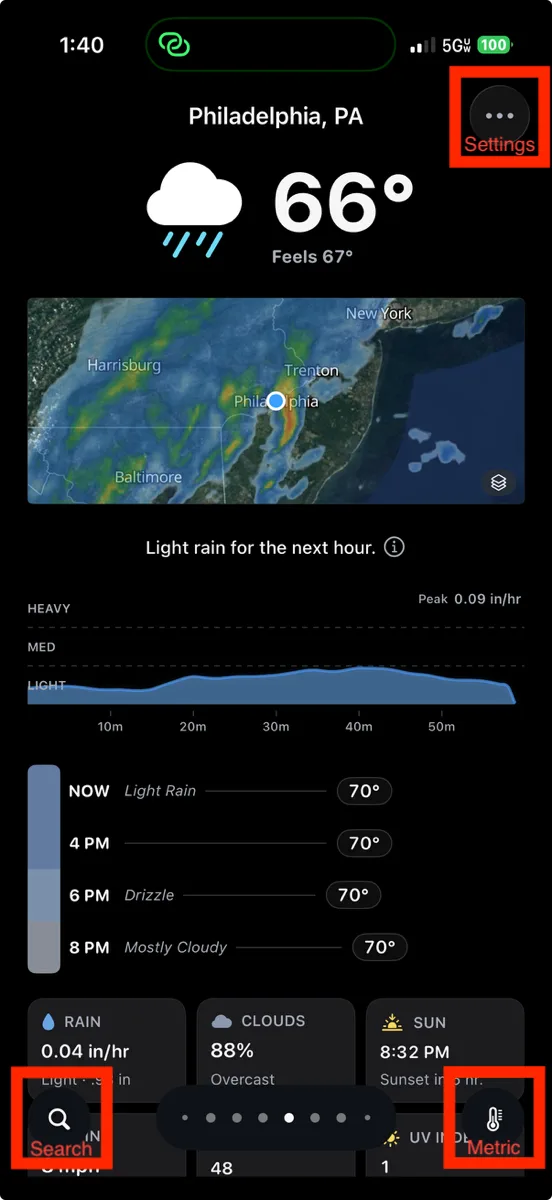
These buttons can be customized to your liking. For example, I prefer a minimal setup with only a single button in the bottom right to access Settings.
Your locations are always accessible by swiping in from the left edge of the screen.
Customize your map
You can customize the map base layers — Map, Satellite, and Hybrid — as well as the overlays — Auto, Radar, Temperature, and Cloud Cover.
- Map is a custom light or dark map (depending on your theme) with place names and territory borders.
- Satellite is a geographical satellite view.
- Hybrid combines the satellite base map with place names and territory borders overlaid.
Auto shows radar when it's raining, temperature in extreme heat or cold, and cloud cover when it's overcast.
Customize your data cards
Choose between Rain, Cloud Cover, Sun & Moon, Dew Point, Tides, Wind, Air Quality, UV Index, and Climate data cards. This setting lets you reorder the cards and select which ones show or stay hidden on the main forecast view.